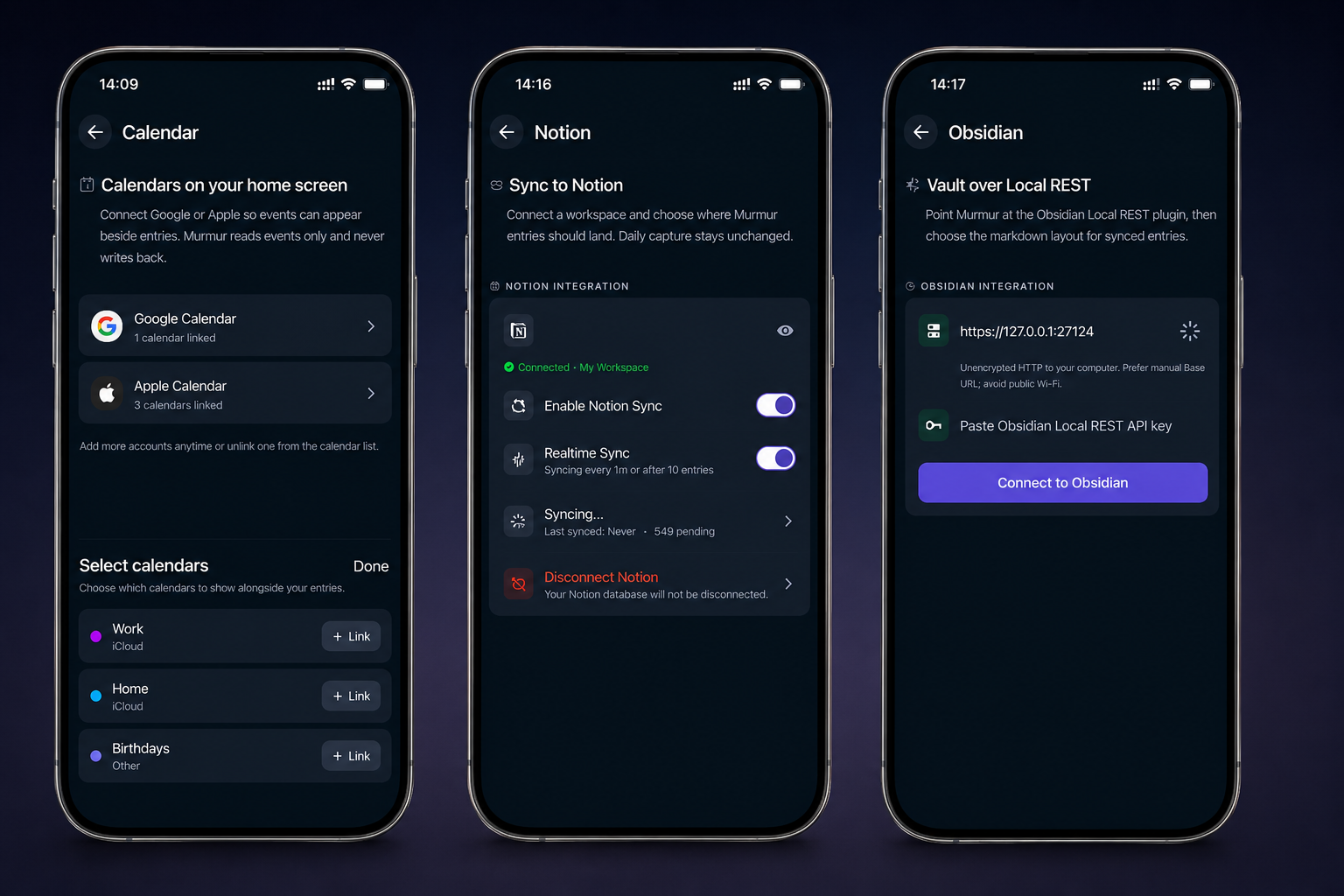
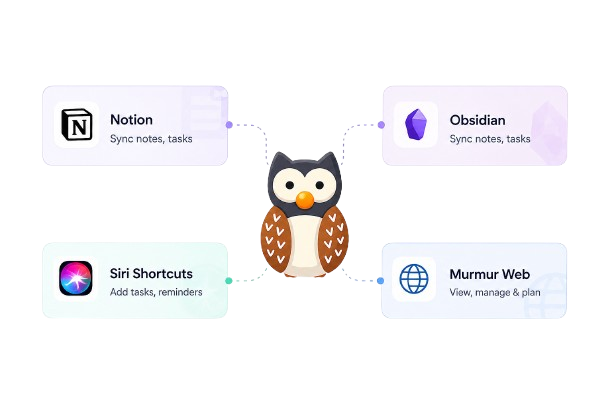
A capture tool becomes far more useful when it respects the systems you already use. Murmur connects quick, natural input to three different kinds of context: time in your calendar, collaborative structure in Notion, and local Markdown knowledge in Obsidian.
These integrations do different jobs. Calendar helps you plan realistically. Notion helps you shape entries into databases and projects. Obsidian lets you keep durable files in a vault you control.
Google Calendar and Apple Calendar: see the real shape of your day
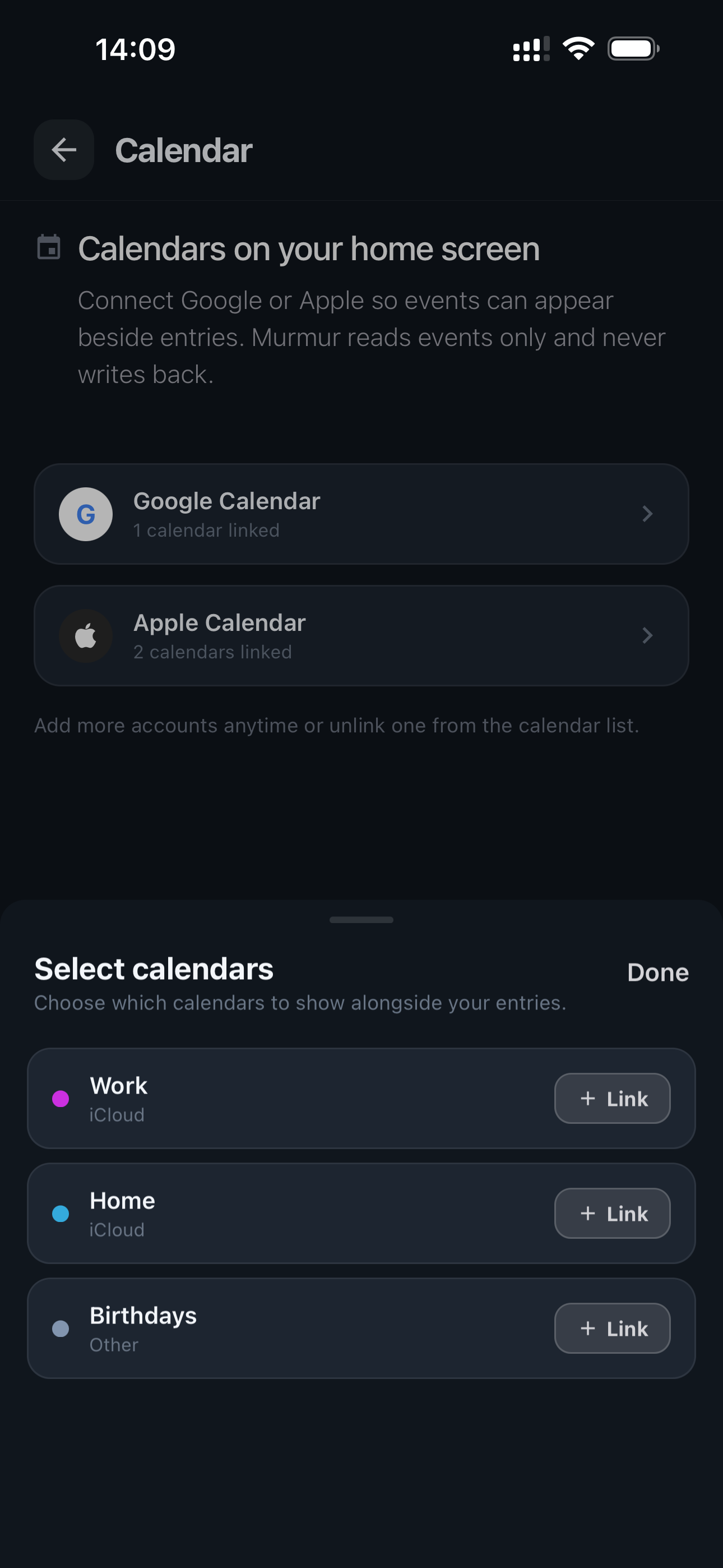
Connect Google Calendar or Apple Calendar to view selected events alongside your Murmur entries. This matters because a task list alone does not know that half your afternoon is already committed to meetings, appointments, or travel.
In Murmur, open Settings, choose Calendar Integrations, add the provider, grant calendar permission, and select the calendars you want to see. You can change that selection or disconnect later.
- Google Calendar connection through account authorization
- Apple Calendar support through device calendar access
- Control which individual calendars appear in Murmur
Notion: turn captured entries into a working database
The Notion integration is a one-way sync from Murmur to Notion. Entries can arrive with structured properties including title, category, date, tags, and summary, ready for filtering, dashboards, and project relationships.
Create a Notion integration key, share the destination page with that integration, then paste the key in Murmur under Settings and Notion Integration. Enable sync and use Sync Now for the first transfer. With realtime sync enabled, new saves can sync after capture; otherwise entries can be sent in batches.
- Best for team workspaces, project dashboards, and filtered databases
- One-way direction keeps Murmur as the source capture inbox
- The Notion page must be shared with your integration
Obsidian: send entries to local Markdown files
Obsidian is the choice for people who want a file-based knowledge system. Murmur sends entries to your vault as Markdown notes over local Wi-Fi, without requiring a cloud handoff for this connection.
Install and enable the Local REST API community plugin in desktop Obsidian, turn on its HTTP server and local-network access, and copy its API key. Your phone and laptop must be on the same Wi-Fi, with Obsidian open. In Murmur, use Find to detect the laptop or enter its local base URL, then paste the key and connect.
- One-way Murmur-to-Obsidian sync
- Markdown notes created in a Murmur folder
- Local connection requires the desktop app, plugin, and shared Wi-Fi
Which integration should you use?
Use Calendar when your main question is whether a task fits into the time you actually have. Use Notion when captured information needs shared databases, project views, and flexible properties. Use Obsidian when you prefer local Markdown files, backlinks, and a personal vault.
You do not have to choose only one. Calendar can supply daily time context while Notion or Obsidian receives selected knowledge. Notion and Obsidian can also be enabled independently; the right setup follows the role each tool plays for you.
- Calendar: daily time and schedule context
- Notion: structured databases and collaborative projects
- Obsidian: local Markdown and personal knowledge management
Troubleshooting the common connection issues
If calendar events are missing, check system permissions, confirm that at least one calendar is selected, and refresh. If Notion is not syncing, verify the key and make sure the target page is explicitly shared with the integration.
For Obsidian, confirm the desktop app is open, both devices share the same Wi-Fi, the Local REST API server is running, and the port and API key match. Local IP addresses can change; use Find again or update the base URL when that happens.
Frequently asked questions
Is Notion or Obsidian sync two-way?
No. Both integrations send entries one way from Murmur. Changes made later in Notion or Obsidian do not sync back to Murmur.
Can I use Notion and Obsidian together?
Yes. The integrations can be enabled independently, so you can use both if they serve different parts of your workflow.
Does Obsidian sync require cloud storage?
The Murmur connection uses local Wi-Fi to send Markdown notes to desktop Obsidian through the Local REST API plugin. Both devices must be on the same network.